
How to Use Siri Shortcuts to Automate Tasks on iPhone
Q: How can I make my iPhone do tasks automatically with just one tap or voice command?
A: You can use Siri Shortcuts to automate common tasks like sending messages, opening apps, adjusting settings, or even running multiple actions with a single command. This feature saves time and makes your iPhone more efficient.
How to Create a Siri Shortcut
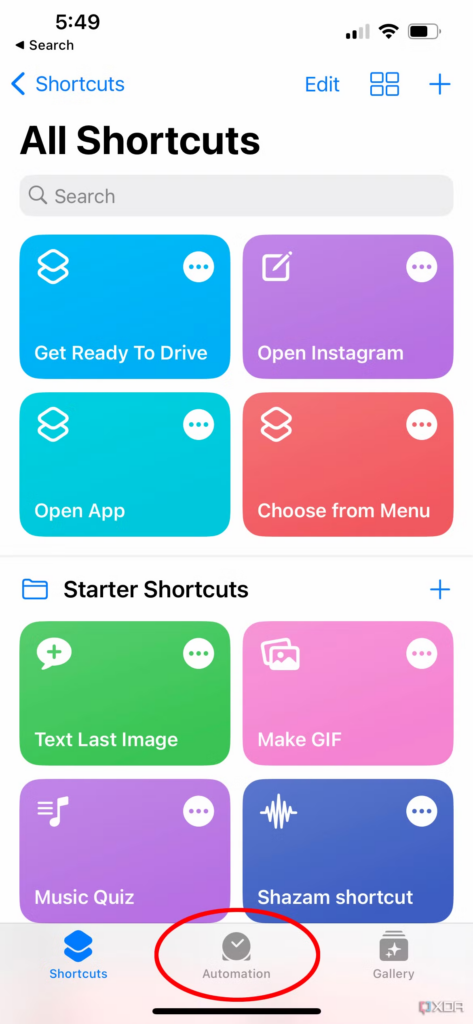
-
Open the Shortcuts app (pre-installed on iPhones).
-
Tap the + button in the top right to create a new shortcut.
-
Tap Add Action and choose from the suggested actions or search for specific ones (e.g., “Send Message,” “Open App,” “Play Music”).
-
After selecting an action, customize it as needed.
-
Tap the Play button to test it.
-
Tap Done to save your shortcut.
Now, you can run the shortcut by tapping it in the Shortcuts app or saying “Hey Siri, [shortcut name]”.
Examples of Useful Siri Shortcuts
-
Send a Quick Text – Create a shortcut to instantly text “On my way!” to a specific contact.
-
Turn on Do Not Disturb – A shortcut that activates DND mode for a set time (e.g., 1 hour).
-
Start a Workout – Open your favorite fitness app and play a workout playlist with one command.
-
Auto-Open Navigation – Set a shortcut that launches Apple Maps or Google Maps with your home or work address preloaded.
Automation Feature
-
Go to the Automation tab in the Shortcuts app to create actions that trigger automatically based on time, location, or app usage.
-
Example: Automatically turn on Low Power Mode when the battery drops below 20%.
Siri Shortcuts make everyday tasks easier, letting you automate actions with a tap or voice command. Once you start using them, you’ll wonder how you lived without them!