
How Can You Use iPhone’s AssistiveTouch to Simplify Navigation?
Did you know your iPhone can help you perform common actions with just a tap? AssistiveTouch is an iOS feature designed to make navigation easier for everyone, especially if you have difficulty using physical buttons or gestures. It places a virtual button on your screen, giving you quick access to functions like screenshots, volume controls, and more. Let’s see how you can use it.
How to Enable AssistiveTouch
-
Open Settings on your iPhone.
-
Go to Accessibility.
-
Tap Touch.
-
Select AssistiveTouch.
-
Toggle AssistiveTouch on.
Now, a floating button will appear on your screen. You can move it anywhere along the screen’s edge for convenience.
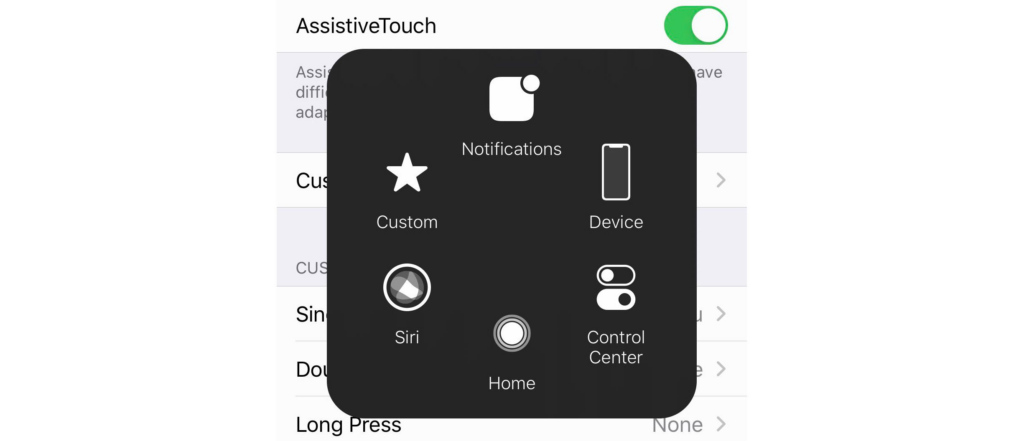
Key Actions You Can Perform with AssistiveTouch
-
Take a Screenshot – Tap the AssistiveTouch button → Device → More → Screenshot.
-
Open Control Center – Tap the button → Control Center.
-
Lock the Screen – Tap the button → Device → Lock Screen.
-
Adjust Volume – Tap Device → Volume Up or Volume Down.
-
Restart the Device – Tap Device → More → Restart.
Customizing AssistiveTouch
-
Go to Settings > Accessibility > Touch > AssistiveTouch.
-
Tap Customize Top Level Menu.
-
Tap an icon to replace it with another action.
-
Use the + or - buttons to add or remove icons.
Pro Tip: You can create custom gestures if you frequently use certain swipe or pinch motions.
Advanced AssistiveTouch Tricks
-
Double-Tap for Specific Actions: Assign a double-tap to take screenshots or lock your screen.
-
Shake to Undo: If you accidentally delete text, shake your phone to undo it.
-
Use with External Devices: AssistiveTouch supports external devices like joysticks and trackpads.
Why You Should Try AssistiveTouch
-
Accessibility – Perfect for individuals with limited dexterity.
-
Convenience – Access features without pressing physical buttons.
-
Efficiency – Quickly perform common actions with fewer steps.