


Use the section below that matches what you see.
Both editions support Finder right-click and toolbar menus through the Finder Sync extension. Only the direct-download edition supports opening the menu with a keyboard shortcut. The Mac App Store edition does not show Set Shortcut or request Automation access to Finder.
The entire diCleaner menu is missing in Finder
- Open Optimize → Right-Click Menu → diCleaner Menu.
- Select Enable Finder Menu.
- In the setup panel, check the status of the Finder extension.
- If it is off, select Open System Settings and turn it on.
- Return to diCleaner and select Refresh Status.
- Control-click a file or folder in Finder again.
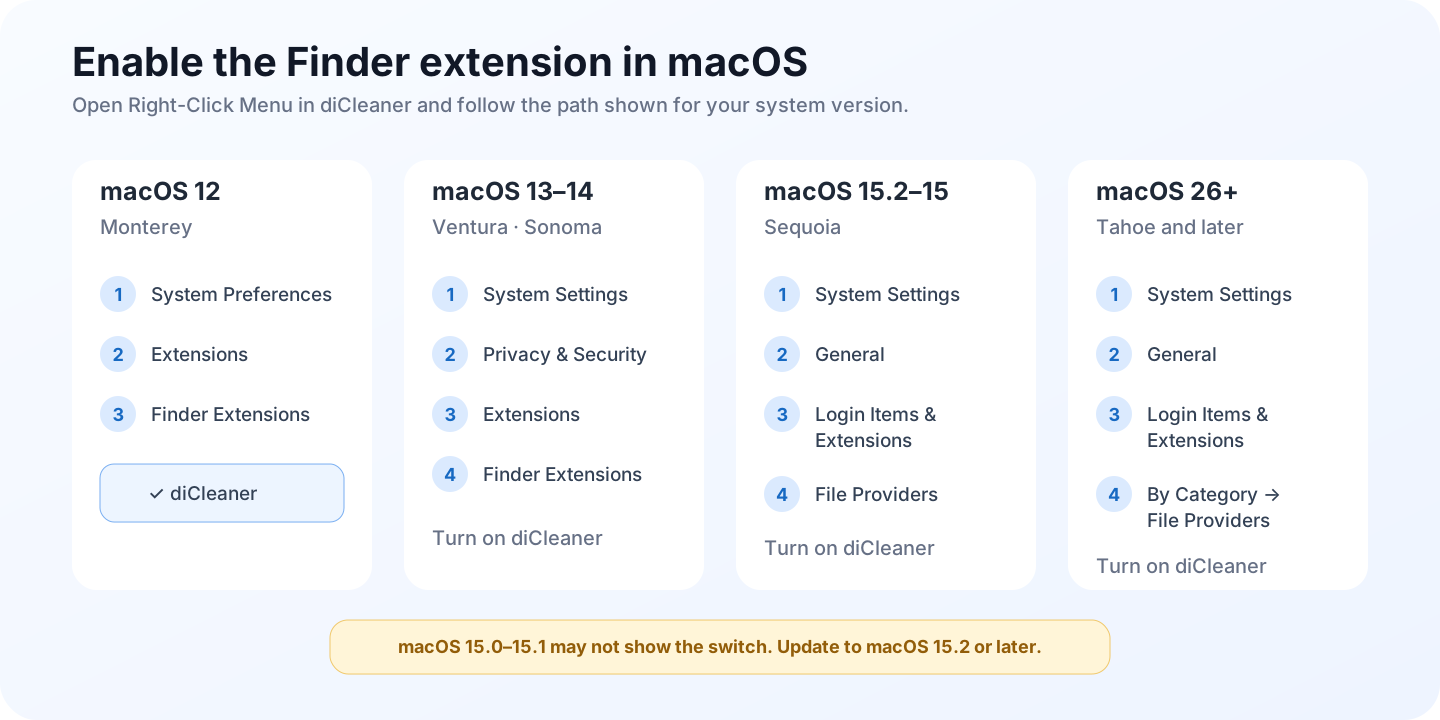
If the extension is on but the menu is still missing:
- Quit extra copies of diCleaner and keep the intended copy in Applications.
- Relaunch Finder, or sign out and back in, so macOS reloads the extension.
- Reopen diCleaner and select Refresh Status again.
Multiple installed copies can make macOS load an older extension even when the current app reports a different state. The Mac App Store edition does not show the direct-download edition’s warning about another registered copy, so the absence of that warning does not rule out a duplicate installation.
One enabled command is missing
This usually means the command does not apply to the item you clicked.
- Open Optimize → Right-Click Menu → diCleaner Menu.
- Select the command’s category and confirm that the command is on.
- In Menu Preview, choose the same kind of item you clicked in Finder.
- For Clipboard or organization commands, also choose the matching clipboard content.
Examples:
- image tools need a supported image selection;
- Extract ZIP needs a ZIP archive;
- Paste Files Here needs copied files;
- Move Here needs files cut with diCleaner;
- Uninstaller actions need an application.
Also check your edition. Encrypted disk images, Vault actions, and shell-script custom actions are not available in the Mac App Store edition.
The keyboard shortcut does nothing (direct-download edition only)
If you use the Mac App Store edition, a missing Set Shortcut button is expected. Use the Finder extension instructions above. Enabling Finder Automation access will not add the keyboard shortcut feature to that edition.
Open Set Shortcut and check the settings shown below.
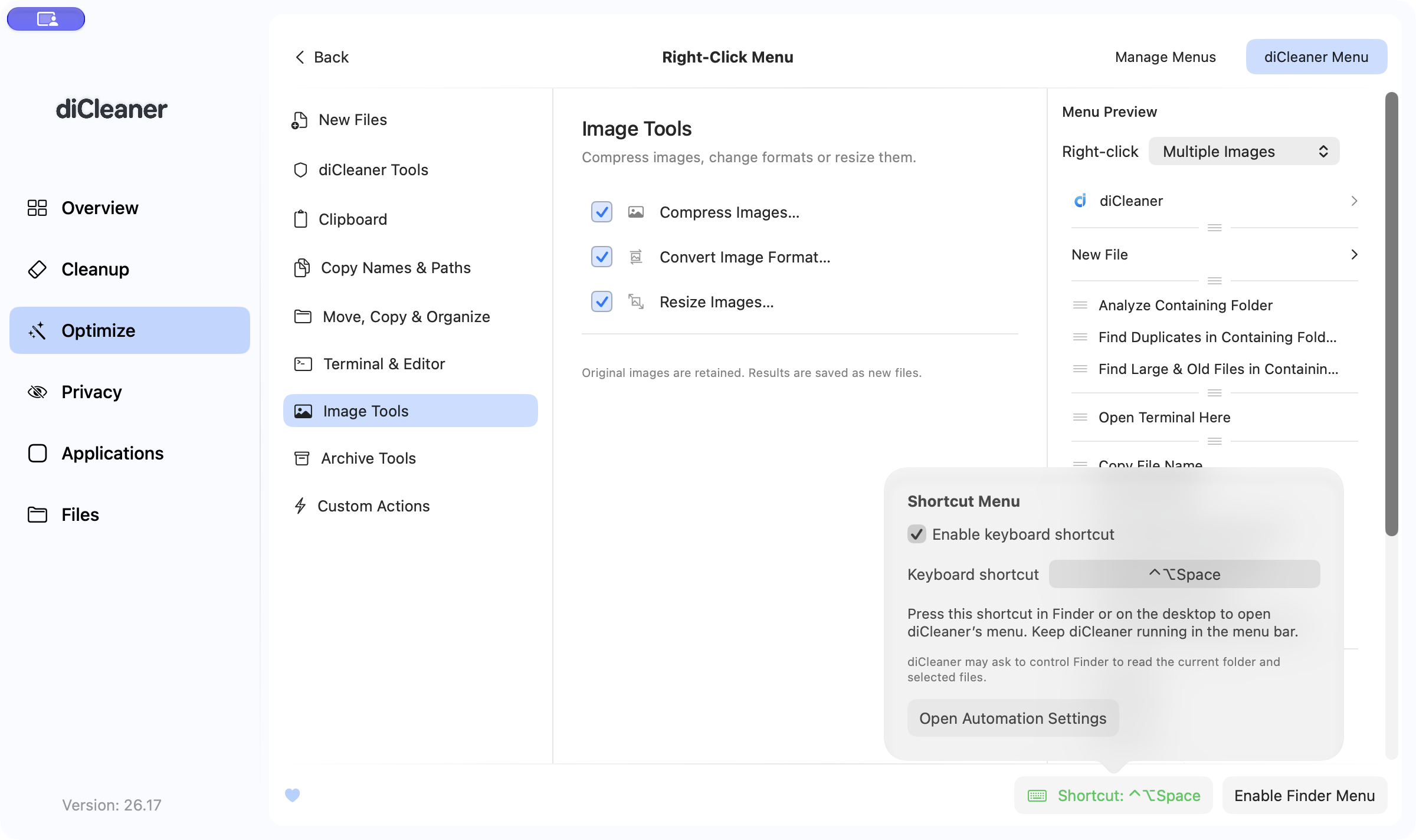
Confirm that:
- Enable keyboard shortcut is on;
- the shortcut includes Command or Control;
- another app is not already using the same shortcut;
- diCleaner is running in the menu bar;
- Finder is allowed under System Settings → Privacy & Security → Automation.
If diCleaner says the menu-bar component is outdated or could not restart, select Restart Menu Bar App, then try the shortcut again in Finder or on the desktop.
A command appears but fails
Try the same command in a normal writable folder, such as a folder inside your home directory. The original location may be read-only, protected, offline, or unavailable to diCleaner.
Then check the item involved:
- For move or copy commands, confirm that the source still exists and the destination is available.
- For archive or image commands, confirm that the disk has enough free space for a new output file.
- For cloud files, download the file before trying again.
- For network volumes and external disks, reconnect the volume and grant access if macOS asks.
- For a custom action, run the Apple Shortcut or script directly to check whether it has its own error.
If an administrator or file-access prompt appears unexpectedly, cancel it. Retry only after confirming that the prompt matches the command you selected.